From text prompts to creative visuals: How to use Canva’s AI image generation tools to create customized images for social media posts, presentations, and digital projects.
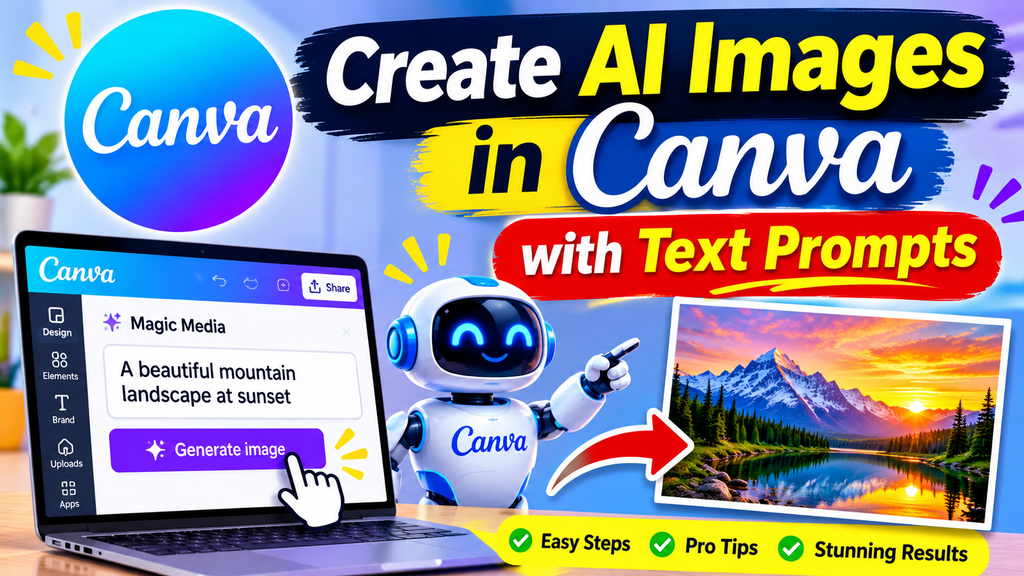
- Canva allows users to create custom AI images using text prompts, without the need for advanced graphic design skills.
- Magic Media and Dream Lab AI provide tools for creating, customizing, and enhancing visuals.
- Detailed prompts, the right image style, and careful editing can lead to better results from AI.
AI image generation makes it possible to create visuals without advanced design skills. Canva offers text-to-image tools that convert written descriptions into images for presentations, social media posts, posters, and other projects. Users specify a subject, setting, and style, and the platform generates various options.
Canva’s tools include Magic Media and Dream Lab. Availability may vary based on your account, device, and the rollout phase. Both tools generate images from prompts; Dream Lab also supports reference images and follow-up edits. Here is how you can use them.
How to create AI images in Canva using text prompts
Sign in to Canva and open a design. In the editor’s side panel, select Magic Media. If it’s not there, open Apps and search for it. Select the Images tab. Alternatively, from the homepage, select More and open Dream Lab, if available.
Enter a detailed prompt
Describe the image you want, including its subject, setting, composition, mood, lighting, and style. For example: “A golden retriever sitting by a window on a rainy afternoon, soft natural light, warm cinematic photography.” This provides the generator with much more direction than simply saying “a dog.”
Include key details, such as colors, camera angles, and whether the final result should look like a photograph, an illustration, or a painting. Keep your wording clear.
Choose a style and layout
In Magic Media, choose a genre, such as photography, digital art, or fine art, and choose a layout. Square images may be perfect for social posts, while landscape and portrait formats work for presentations and mobile content. Dream Lab can also let you add a reference image to guide the results.
Create and review images
Choose to generate an image in Magic Media or Dream Lab. Review the available options and select the one that best matches your idea. If the results don’t meet your expectations, adjust your prompt and generate again. Where supported, you can also request specific changes—such as altering the color of an object or adding certain details.
Edit images in Canva
Select your preferred image to add to the design. Resize, reposition, or crop it, then combine it with text, shapes, frames, and other elements. Ensure it fits well within the visual layout and appears clear on your chosen platform.
Download or share
Once your design is ready, select ‘share’ or ‘download’. Choose the appropriate format—such as PNG or JPG—for digital use, and check the dimensions before saving.
Tips for better AI-generated images
Instead of using vague requests, provide specific details. Experiment with different variations, adjusting one detail at a time in your prompts. Before publishing, carefully check elements like faces, hands, text, and finer details. Be aware of the usage limits for Canva’s AI tools, as access and monthly allowances vary by plan, and certain features consume AI credits. Ensure compliance with Canva’s terms, and always obtain permission before using the likeness of real people, specific characters, or brands.
Canva’s text-to-image tools can transform an idea into a functional visual. Using clear prompts and careful editing ensures that the results align with your intended purpose. Treat AI-generated images as raw material to be reviewed and refined, rather than as finished artwork that requires no further inspection.
Read More: On-Device AI vs Cloud AI: Which Is Better?